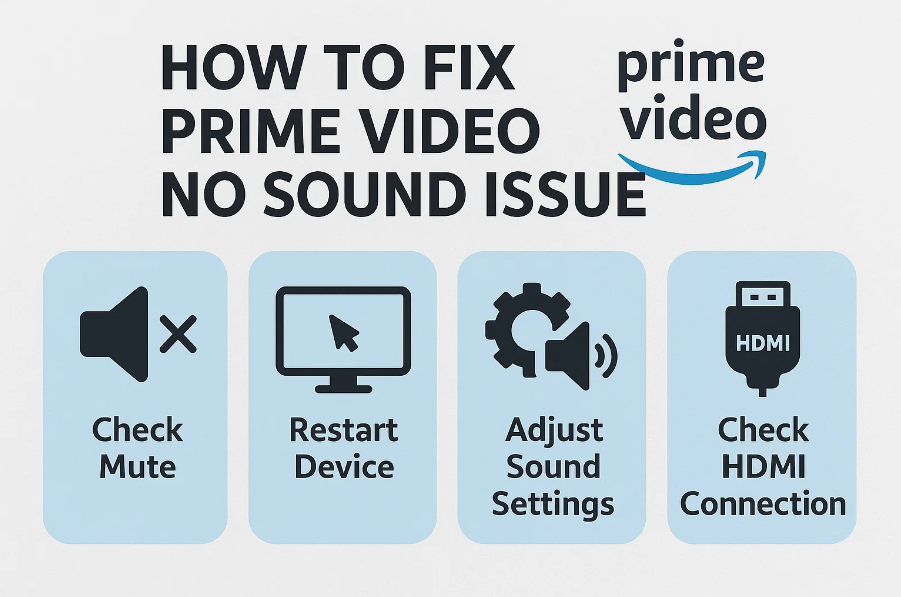
Amazon Prime Video is a go-to platform for streaming your favorite TV shows, movies, and originals. However, like any streaming service, it’s not immune to technical glitches. One of the most frustrating issues users face is when there’s
no sound on Amazon Prime — even though everything looks like it’s working fine. If you’ve ever hit “Play” only to find
Prime Video sound not working, you’re not alone.
In this guide, we’ll break down the common causes of audio problems on Prime Video and offer effective troubleshooting steps — whether you’re using a smart TV, computer, or mobile device.
Common Reasons for No Sound on Prime Video
If you’re experiencing
Amazon Prime no sound, the issue could stem from a variety of sources — from simple volume settings to more technical glitches. Here are the most common culprits:
Muted Audio or Low Volume Settings
Sometimes the fix is surprisingly simple. Your device or the Prime Video app might be
muted or set to very low volume. This can happen accidentally or due to external volume control settings.
Audio Output Device Issues
If the wrong speakers or headphones are selected (especially with Bluetooth or HDMI audio devices), you might hear nothing even though the video is playing. Double-check your
audio output settings.
Browser or App Glitches
Temporary software bugs in the Prime Video app or browser may cause
audio issues, especially after updates. Restarting or reinstalling often helps.
Outdated Drivers or System Software
An
outdated operating system or audio driver can cause compatibility issues, especially on computers. Make sure everything is up to date.
Slow or Unstable Internet Connection
Audio dropouts or complete loss of sound can also be a result of
network buffering. Streaming requires a stable internet — and sometimes, sound gets affected before video playback does.
Quick Fixes for All Devices
Before diving into device-specific troubleshooting
, try these universal solutions. These can solve most problems in minutes.
Check Volume Controls
- Make sure your device’s volume is turned up.
- Ensure Prime Video’s in-player volume slider isn’t muted or minimized.
- If using external speakers or headphones, check their volume settings.
Disconnect & Reconnect Audio Devices
- Unplug and replug wired headphones or speakers.
- Disconnect and reconnect Bluetooth audio devices.
- Restart the audio device to ensure a stable connection.
Restart the App or Browser
- Close and reopen the Prime Video app.
- If you’re using a browser, try refreshing the tab or opening Prime Video in a new window.
Sign Out and Back In
Sometimes account syncing causes issues. Simply sign out of your
Amazon Prime account and sign back in to reinitialize playback settings.
3. Device-Specific Troubleshooting
1. For Smart TVs & Streaming Devices (Fire TV, Roku, Apple TV, etc.)
No sound on Amazon Prime via your smart TV or streaming stick? Try the following:
- Restart the TV or streaming device.
- Restart the Prime Video app specifically.
- Check HDMI cables and ports if you’re using an external device (e.g., Fire TV Stick or Roku).
- Go to your audio settings and reset them to default.
- Switch between Dolby Digital and PCM in audio settings to test compatibility.
2. For Computers (Windows/Mac)
If you’re watching on a desktop or laptop and facing
Prime Video audio not working, here’s what to do:
- Update your audio drivers via Device Manager (Windows) or System Preferences (Mac).
- Try a different browser — sometimes Chrome, Firefox, or Safari handles audio differently.
- Clear the browser cache to remove corrupted cookies or playback settings.
- Disable browser extensions that could interfere with playback (e.g., ad blockers or audio boosters).
3. For Mobile Devices (iOS/Android)
Smartphones and tablets can also run into sound issues on the app:
- Force close the Prime Video app and reopen it.
- Go to the App Store or Google Play and check for updates.
- Reboot your phone.
- Check that your media volume is turned up (not just ringtone volume).
- Make sure Bluetooth audio isn’t connected to another device.
When Streaming Isn’t Ideal — An Alternative Viewing OptionEven with all the fixes above, streaming may still be disrupted by audio glitches, buffering, or inconsistent playback — especially on older devices or with unstable internet.
A great solution to avoid
Prime Video sound not working or similar issues is to
download Amazon Prime videos for offline viewing. When you watch offline, playback errors (including no sound) are far less likely.
Try the CleverGet Amazon Downloader
If you’re looking for a reliable tool to
save Prime Video content, the
CleverGet Amazon Downloader allows you to download high-quality Prime videos for offline viewing.
This tool is designed for ease of use and gives you full control over resolution, subtitles, and audio — eliminating issues like poor playback, lag, or sound loss during streaming. It’s considered one of the
best Amazon downloader options currently available.
While downloading content isn’t a built-in feature for all platforms or titles on Prime Video, using a downloader tool ensures you can watch without disruption — even when you’re offline or on the go.
Conclusion
Amazon Prime no sound issues can be annoying, but in most cases, the fix is simple. Whether it’s checking your volume settings, restarting the app, or updating your device drivers, these quick solutions often resolve the problem in minutes.
When troubleshooting doesn’t solve the issue, consider switching to
offline viewing to avoid playback hiccups altogether. With tools like
CleverGet Amazon Downloader, you can ensure a smooth, uninterrupted experience — no more audio dropouts or frustrating silence during your favorite show.
So the next time you run into
Prime Video sound not working, you’ll know exactly what to do.