Have you ever experienced the frustration of returning from a successful client photo shoot, only to discover that all the images are blurry?
Are you seeking a high-quality photo repair tool to remove blur from your images?
In 2025, solutions for fixing blurry pictures have reached unprecedented levels of accuracy and efficiency thanks to cutting-edge AI techniques.
With the best photo viewing apps and online tools at your fingertips, unblurring images has become a seamless and accessible process.
How to Remove Blur from Photo Online: 6 Top Online Tools to Make Your Blurry Picture Clear in 2025
Discover the art of restoring clarity to your blurred images with these 6 best online tools, ensuring your picture is clear.
1. Unblur Image Using Stellar Online Photo Repair
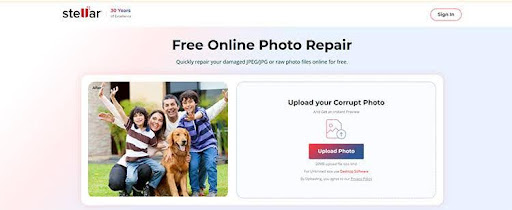
Stellar Online Photo Repair is the best alternative to various online photo repair software, especially when fixing blurry images online for free. This tool is better than other online photo tools because of data privacy and security.
Stellar Online Photo Repair automatically deletes both the uploaded and repaired blurry images from the server within 3 hours of uploading the original image, ensuring complete privacy. Moreover, the repaired images are watermark-free, even for the free version of this online tool.
Stellar Online Photo Repair for Photos is a cloud-based tool for fixing corrupted, damaged, and blurry pictures.
How to Use Stellar Online Photo Repair to Fix Blurry Pictures for Free?
- Go to https://repair.stellarinfo.com/photo/ and click Sign in to log in to your account.
- Once successfully logged in, click on Upload Photos to upload blurry images.
- Once you finish adding blurry pictures, click ‘Start Repair’ to initiate the repair process.
- The progress will take some time to repair the photos. After the process is over, click Download to download the repaired photos.
2. Unblur Image Using the Let’s Enhance Tool
Let’s Enhance uses machine learning to improve the quality of blurry images. The free version of the software cannot repair more than three fuzzy photos.
How to Unblur an Image With Let’s Enhance
- Upload Image: Drag and drop the blurry image to letsenhance.io
- Choose an upscaling network: the “Balanced” mode can make your image clearer without increasing its resolution.
- Apply Changes: Click “Enhance” to unblur the image.
- Save Image: Download the enhanced image.
3. Unblur Image Using Fotor Tool
Fotor uses AI tools to fix blurry photos online for free. It can easily improve photo quality, remove unwanted objects from the photos, and add filters to your photos.
How to Unblur Images Using the Fotor Tool
- Open Image Editor: Go to fotor.com and open the Photo Editor.
- Upload Image: Click Open Image to upload the blurry image.
- Select Sharpeness Slider: In the editing panel, go to the Adjust tab > Sharpness slider. Now, move the slider until your photo becomes clearer.
- Enhance Photo: Adjust the Brightness, Contrast, and Clarity to further enhance the image.
- Download Image: Download the edited image and save it on your PC.
4. Remove Blur from Image Using AI Image Enhancer
One effective method to unblur an image is by employing a reliable photo enhancer tool like MyEdit’s AI Photo Enhancer. This tool can fix out-of-focus or motion-blurred photos, turning them into clear images.
How to make a Blurry picture clear using an AI Image Enhancer
- Upload Image: Go to MyEdit, select, and import a blurry image.
- Select Enhance: Then go to the Enhance tab and choose Image Enhancer from the menu.
- Save Image: Download the unpixelated image with clearer text.
5. Unblur Image Using Picsart
Picsart tool can Unblur images for free. This tool uses an AI enhancement tool to sharpen or clarify images. Moreover, you need to sign up or log in even for free edits.
How to Unblur Images Using Picsart Tools
- Open Picsart Tool: Go to picsart.com or launch the Picsart mobile app.
- Upload Image: Upload your blurry image.
- Access Editing Tools: From the toolbar, select Tools > Adjust.
- Sharpen Photo: Use the Sharpen slider to increase the picture clarity.
- Save Image: Once satisfied, click Export and save the clear image.
6. Unblur Images Using VanceAI
The VanceAI tool can unblur images online and can give clarity to blurry images, perfect for social media, websites, and more. However, the free version has limited credits to fix blurry images.
How to Unblur Images Using VanceAI
- Upload Image: Click on “Upload Image” and select a picture to unblur.
- Choose an Unblurring Mode: Choose a proper “Sharpen Mode” for your picture and start.
- Download & Save: Preview the result and download it to your device.
Why are Your Photos Blurry?
Even if it looks like you’re about to capture a clear picture, different issues can make your image blurry after you take the photo. Your photos may come out blurred due to:
- Images can get blurry due to a shaky camera or when your subject is moving during a photoshoot.
- Images captured with low-quality digital cameras or incorrect camera settings often appear blurry.
- Unexpected system crashes or power outages can corrupt the file system.
Most of these problems are easily fixed with small adjustments. However, if your image is still blurry, it can be due to corruption. Use Stellar Online Photo Repair to fix the corruption in the photo file that makes your picture blurry.
Tips to Avoid Blurry Images
While Stellar Online Photo Repair is here to clear up blurry photos, it helps to know how to avoid them from the start. Here are a few tips to try to get better-quality photos:
- Use a tripod to eliminate camera shake.
- Increase the camera’s shutter speed to prevent blurred images while capturing a moving subject.
- Take the time to ensure your subject is in sharp focus before shooting.
- Use Image Stabilization, which helps reduce the blur caused by camera shaking.
- Clean the Lens with a clean and dry microfiber cloth.
Final Word
Stellar Online Photo Repair is the best online tool for unblurring images. With an automatic 3-hour file deletion policy, you can restore personal or professional images without worrying about your data privacy or security. For casual edits, use Fotor, VanceAI, or Picsart to enhance the images.